Why Convert PDF to Image?
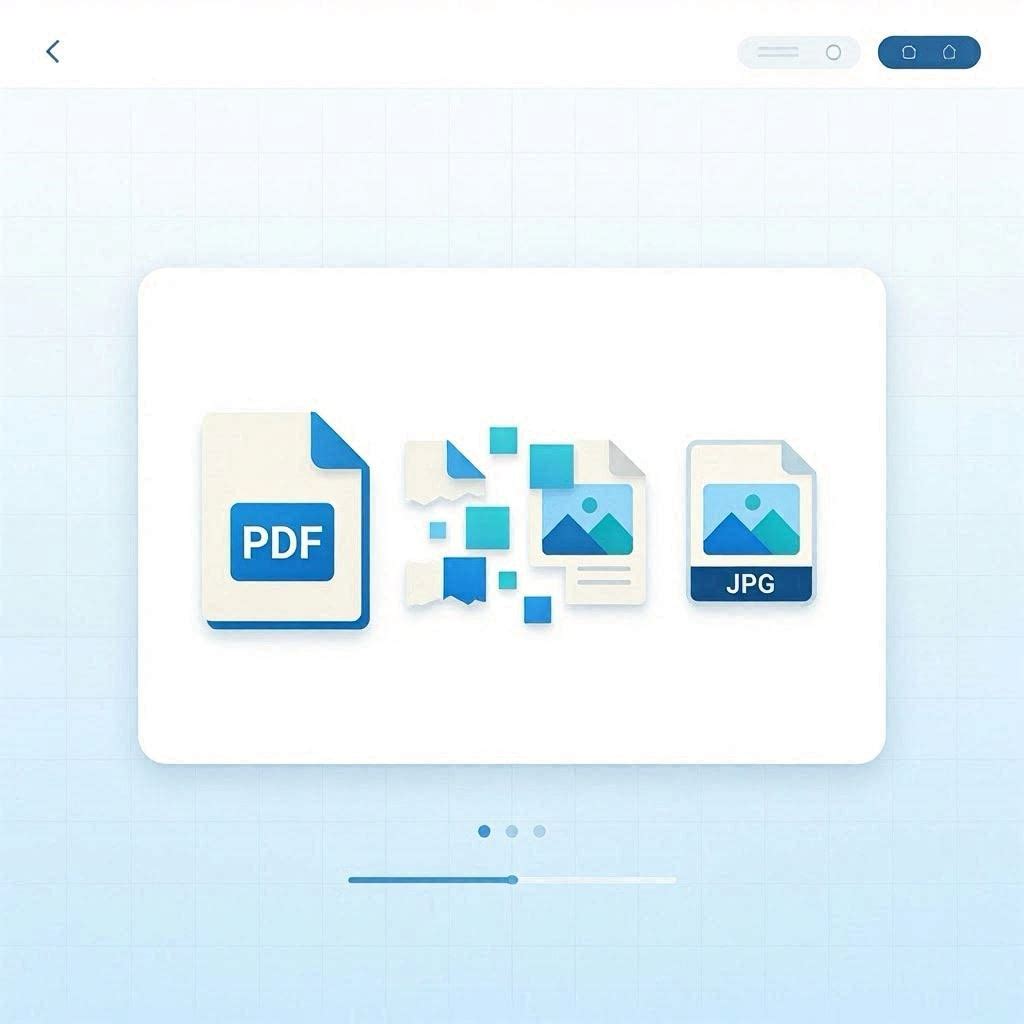
PDFs are the standard format for document sharing, but there are many situations where an image format is more practical. Social media platforms do not support PDF uploads — sharing a page from a report or presentation requires converting it to an image first. Email clients often display image attachments more conveniently than PDF attachments for quick visual previews. Web pages cannot embed PDFs natively in the same way as images. Presentations may require specific pages from a PDF document as slides. Graphic design applications work with images more fluidly than PDFs for certain workflows.
JPG vs PNG: Which Format to Choose
JPG (JPEG) uses lossy compression — some image quality is sacrificed to achieve smaller file sizes. JPG is ideal for photographs and complex graphics where the compression artifacts are not noticeable. For PDF pages containing text and simple graphics, JPG at high quality settings (90%+) produces acceptable results with small file sizes. PNG uses lossless compression — no quality is lost, but file sizes are larger. PNG is ideal for PDF pages with text, diagrams, charts, or graphics with sharp edges where JPG compression artifacts would be visible. For professional or archival use, PNG is preferred.
Resolution and DPI Explained
DPI (dots per inch) determines the resolution and sharpness of the output image. 72 DPI is screen resolution — suitable for web display and email but not for printing. 150 DPI produces good quality for most digital uses with moderate file sizes. 300 DPI is print quality — suitable for professional printing, archival purposes, and when the image will be enlarged. Higher DPI produces sharper images but significantly larger file sizes. For a standard letter-size PDF page (8.5 × 11 inches), 300 DPI produces an image of 2,550 × 3,300 pixels — suitable for professional use.
How PDF Rendering Works in the Browser
Our PDF to image converter uses PDF.js — Mozilla's open-source JavaScript PDF renderer — to parse and render PDF pages directly in your browser. PDF.js reads the PDF's internal structure (vector graphics, fonts, images) and renders each page to an HTML canvas element at the specified DPI. The canvas is then exported as a JPG or PNG file for download. This entire process happens locally in your browser — your PDF document is never transmitted to any server, ensuring complete privacy for sensitive documents.
Limitations of Client-Side PDF Conversion
Browser-based PDF rendering has some limitations compared to server-side conversion. Very large PDF files or PDFs with many pages may slow processing on older devices. PDFs with custom or uncommon fonts may not render exactly as they appear in dedicated PDF viewers — PDF.js has excellent but not universal font support. Password-protected PDFs cannot be processed without the password. For most common PDF documents — reports, presentations, scanned documents — the output quality is excellent and suitable for all typical use cases.
How to Use Our Free PDF to Image Converter
Our free PDF to image converter at cookiescursor.com converts any PDF page to JPG or PNG in your browser. Upload your PDF, select the page range (individual pages or all pages), choose JPG or PNG format, set the quality level (72, 150, or 300 DPI), and click Convert. A thumbnail grid shows each converted page with individual download buttons. Download all pages as a ZIP file with one click. Your PDF never leaves your browser. No signup required.
Frequently Asked Questions
Can I convert a multi-page PDF to multiple images?
Yes. Our tool converts each page to a separate image file and provides individual download buttons plus a "Download All as ZIP" option for batch downloading.
Will the text in the converted image be searchable?
No. Once converted to an image, text is no longer machine-readable or searchable. If you need searchable text, use a text-based PDF or our OCR tool to extract text from the image afterward.
What happens to password-protected PDFs?
Password-protected PDFs cannot be processed — you must enter the password first in a PDF viewer that removes the protection, then save a new unprotected PDF for conversion.
What is the maximum PDF size the tool can handle?
There is no hard limit, but very large files (over 50MB) or PDFs with many pages may be slow to process depending on your device's memory and processing speed.
Can I convert just one page from a long PDF?
Yes. Use the page range selector to specify individual pages or ranges — for example, enter "3" for page 3 only, or "2-5" for pages 2 through 5.
Is 300 DPI enough for professional printing?
300 DPI is the standard for professional offset printing. For large-format printing (posters, banners), higher resolutions may be needed depending on the viewing distance and print size.
Convert Your PDF to Images Now
Use our free PDF to image converter for instant, private conversion. No signup required.